markdown如果出现<>,会将其转为dom标签,导致其中的内容无法正常显示
正文中使用尖括号,可以使用转义字符 < < > >
如 需要添加一个<div>
写成 需要添加一个<div>
杂记
markdown如果出现<>,会将其转为dom标签,导致其中的内容无法正常显示
正文中使用尖括号,可以使用转义字符 < < > >
如 需要添加一个<div>
写成 需要添加一个<div>
1.dependencies中有provided和compile两种类型
provided就是编译时依赖,但打包apk时不把包打进去。
应用场景,给第三方提供的sdk,编译依赖某些jar包,但实际使用jar包由第三方控制。
compile 就是编译且打包进apk
compile还有两个衍生
-compile files 本地jar包
-compile project 源码依赖
工程引入了jar包,jar包使用了R.layout.xx,但这个layout并没有打进jar包导致找不到R.layout.xx。
It's because inside JAR doesn't contain resource folder of SDK Project.
解决方法有两种:
如果要把jar包提供出去,则需要使用方法2
public static int getResourseIdByName(String packageName, String className, String name) {
Class r = null;
int id = 0;
try {
r = Class.forName(packageName + ".R");
Class[] classes = r.getClasses();
Class desireClass = null;
for (int i = 0; i < classes.length; i++) {
if(classes[i].getName().split("\\$")[1].equals(className)) {
desireClass = classes[i];
break;
}
}
if(desireClass != null)
id = desireClass.getField(name).getInt(desireClass);
} catch (ClassNotFoundException e) {
e.printStackTrace();
} catch (IllegalArgumentException e) {
e.printStackTrace();
} catch (SecurityException e) {
e.printStackTrace();
} catch (IllegalAccessException e) {
e.printStackTrace();
} catch (NoSuchFieldException e) {
e.printStackTrace();
}
return id;
}
举例,如果以前使用了 R.layout.main,现在需要使用getResourseIdByName(context.getPackageName(), "layout", "main") 以前使用了R.id.mView,现在需要使用getResourseIdByName(context.getPackageName(), "id", "mView")
然后,把用到的资源从SDK中copy到Apk工程。
源自http://stackoverflow.com/questions/14373004/java-lang-noclassdeffounderror-com-facebook-android-rlayout-error-when-using-f
在Android中,想要获得进程内存信息,有两类方法
1.exec大法,使用Runtime.getRuntime().exec()方法来执行命令行,主要命令行有 dumpsys(需要system权限) cat /proc等
private String catProc() {
StringBuilder meminfo = new StringBuilder();
try {
ArrayList<String> commandLine = new ArrayList<String>();
commandLine.add("cat");
// commandLine.add("/proc/meminfo");
commandLine.add("/proc/" + android.os.Process.myPid() + "/status");
Process process = Runtime.getRuntime().exec(commandLine.toArray(new String[commandLine.size()]));
BufferedReader bufferedReader = new BufferedReader(new InputStreamReader(process.getInputStream()));
String line;
while ((line = bufferedReader.readLine()) != null) {
meminfo.append(line);
meminfo.append("\n");
}
} catch (IOException e) {
Log.e(TAG, "Could not read /proc/meminfo", e);
}
Log.i(TAG, "showMeminfo = " + meminfo.toString());
return meminfo.toString();
}
2.android.os.Debug
Debug类有大量的获取内存信息方法,如getPss,用起来很简单
要使用jar包或lib中的service,
假如 app包名为 com.app.xx
jar包名为 com.jar.xx
需要在当前app的manifest中声明service,且使用jar包中的包名,全路径,
android:name="com.jar.xx.xxService"
同时声明exported为true
android:exported="true"
即
<service
android:name="com.jar.xx.xxService"
android:enabled="true"
android:exported="true" />
之后就可以使用am指令打开/关闭service了
打开service ()
adb shell am startservice -n com.app.xx/com.jar.xx.xxService
关闭service
1.adb shell am stopservice -n com.app.xx/com.jar.xx.xxService
2.可能android低版本会不支持 stopservice命令。备用关闭方法: adb shell am force-stop com.app.xx (会关闭整个进程,用kill进程不行,service会自动重启)
目前测试,在Windows 7命令行调用Android截图命令screencap的时候,只能是如此操作才可以
|
1 2 3 |
$ adb shell screencap -p /sdcard/screen.png $ adb pull /sdcard/screen.png $ adb shell rm /sdcard/screen.png |
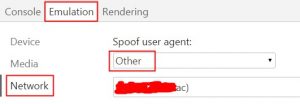
开发web页面时,经常要进行浏览器适配,浏览器的判断依据就是 userAgent
而navigator.userAgent字段是只读的
chrome浏览器提供了强大的调试工具,同时也提供了修改userAgent的功能。
在涂红处添加自己的userAgent,reload页面就可以了。
git tag 可以打标签 相关指令 git tag -h查看
打标签
git tag test
在打tag时,可以增加describe
git tag -m "xxx" test
注意,describe只能在打tag时使用,已存在的tag不能新增/修改describe
然后Makefile中可以这样写
VERSION := $(shell TAG_INFO=git describe)
在Mac下面使用HomeBrew安装了crosstool-ng来编译树莓派的代码,结果在执行的时候报告如下错误:
|
1 2 3 4 5 6 7 8 9 10 11 12 13 14 15 16 17 |
$ ct-ng build [INFO ] Performing some trivial sanity checks [ERROR] Your file system in '/Users/Documents/rpi/rpi-linux/.build' is *not* case-sensitive! [ERROR] [ERROR] >> [ERROR] >> Build failed in step '(top-level)' [ERROR] >> [ERROR] >> Error happened in: CT_Abort[scripts/functions@329] [ERROR] >> called from: CT_TestAndAbort[scripts/functions@351] [ERROR] >> called from: main[scripts/crosstool-NG.sh@93] [ERROR] >> [ERROR] >> For more info on this error, look at the file: 'build.log' [ERROR] >> There is a list of known issues, some with workarounds, in: [ERROR] >> '/usr/local/Cellar/crosstool-ng/1.22.0/share/doc/crosstool-ng/crosstool-ng-1.22.0/B - Known issues.txt' [ERROR] [ERROR] (elapsed: 24422614:07.00) [00:01] / make: *** [build] Error 1 |
比较简单的解决方法就是创建一个支持大小写区分的文件,作为一个分区挂载,然后把代码拷贝到这个分区中执行编译。
|
1 |
$ hdiutil create -volname "Raspberry" -type SPARSE -fs 'Case-sensitive Journaled HFS+' -size 20g raspberry.dmg |
早期版本的Mac OS X
|
1 2 3 4 |
$ hdiutil attach raspberry.dmg -mountpoint /Volumes/raspberry # 切换到挂载目录 $ cd /Volumes/raspberry/ |
对于OS X EI Capitan(10.11.5)版本而言,生成的文件名变成了raspberry.dmg.sparseimage因此需要使用这个文件来挂载
|
1 2 3 4 |
$ hdiutil attach raspberry.dmg.sparseimage -mountpoint /Volumes/raspberry # 切换到挂载目录 $ cd /Volumes/raspberry/ |
挂载后会在桌面生成一个名为Raspberry的磁盘文件夹生成,直接操作这个目录即可。
crosstool-ng的编译工具下载目录|
1 |
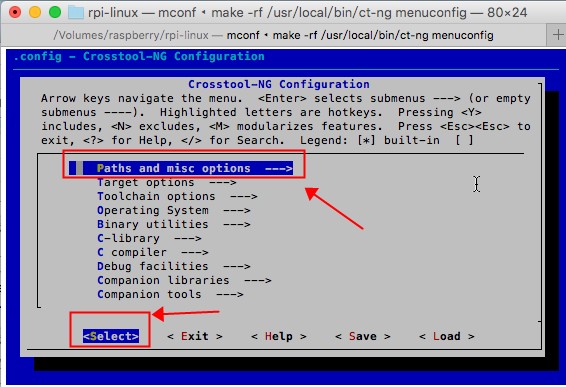
$ ct-ng menuconfig |
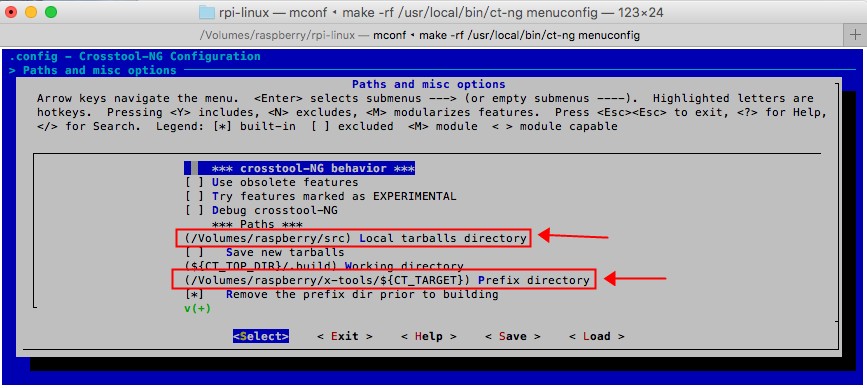
如下图的方式进行操作:
1.选择"Paths and misc options",并选中"Select"之后点击回车按键

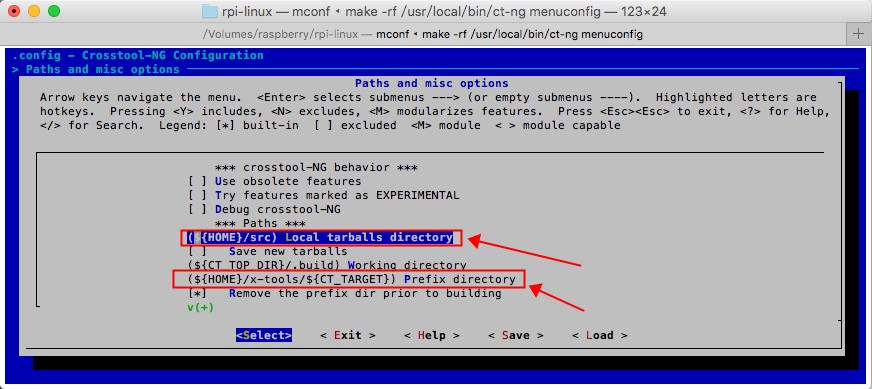
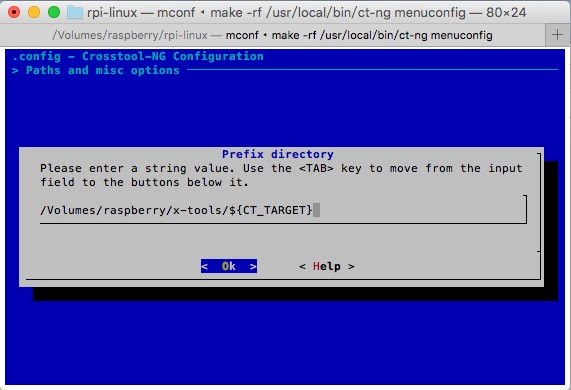
2.点击向下的方向按键,,找到"(${Home}/src) Local tarballs directory",这个项,并选中"Select"之后点击回车按键,修改为"/Volumes/raspberry/src",然后继续向下,找到"(${Home}/x-tools/${CT_TARGET}) Prefix directory",这个项,并选中"Select"之后点击回车按键,修改为"/Volumes/raspberry/x-tools/${CT_TARGET}"


修改后的结果如下图:

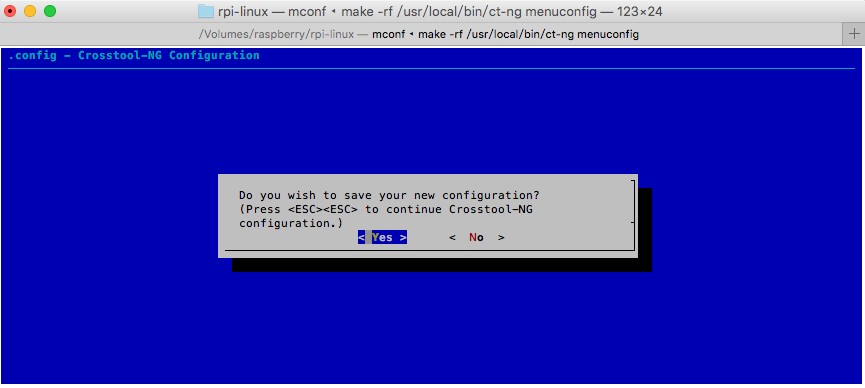
完成操作后,不断快速按下Esc按键,在最后弹出的确认保存窗口中选择保存即可,如下图:

|
1 |
$ hdiutil detach /Volumes/raspberry |
JSON转成bundle
|
1 2 3 4 5 6 7 8 |
Intent intent = new Intent(); JSONObject extrasJson = new JSONObject(extras); Iterator<String> keys=extrasJson.keys(); while (keys.hasNext()) { String key = keys.next(); // 可以根据opt出来的不同类型put intent.put(key, extrasJson.optString(key)); } |
这里有一个需要注意的地方,SDK19以后,用wrap可以更好的处理get出来是map、array等问题。
bundle转JSON 也就是遍历bundle
|
1 2 3 4 5 6 7 8 9 10 |
JSONObject json = new JSONObject(); Set<String> keys = bundle.keySet(); for (String key : keys) { try { // json.put(key, bundle.get(key)); see edit below json.put(key, JSONObject.wrap(bundle.get(key))); } catch(JSONException e) { //Handle exception here } } |